> For the complete documentation index, see [llms.txt](https://documentation.2pintsoftware.com/llms.txt). Markdown versions of documentation pages are available by appending `.md` to page URLs; this page is available as [Markdown](https://documentation.2pintsoftware.com/deployr/1.1/reference/step-definitions/run-server-side-script.md).
# Run server-side script
{% hint style="info" %}
This is only supported in DeployR Enterprise. Applies to: DeployR 1.1 and later.
{% endhint %}
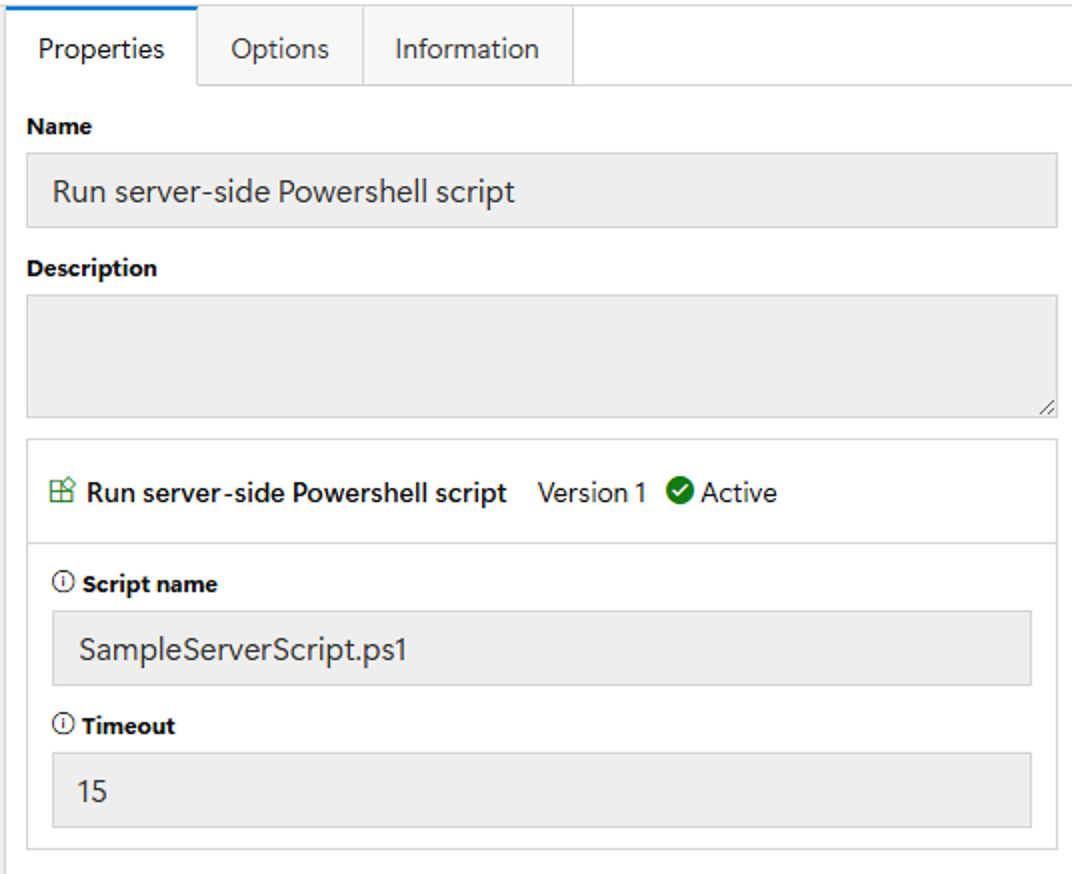
The **Run server-side script** step will run the specified script (e.g. "filename.ps1") on the DeployR server in the context of the service account. It will receive the list of task sequence variables currently set on the client, and it can return back additional values that can be added to the task sequence environment.
The script itself must be located in the "Scripts" folder in the configured content location. IE "DeployR Content Location\scripts". By default, this location is C:\ProgramData\2Pint Software\DeployR\Scripts. Note, most of the time, organizations change the default, so if you're unsure where your DeployR Content location is, you can always confirm in the DeployR Configuration Editor:
An example script named "SampleServerScript.ps1" can be found in the "Tools" folder in the installation path, e.g. C:\Program Files\2Pint Software\DeployR\Tools. This example shows how to receive specific task sequence variables as named parameters, in this case a variable named "HardwareHash", and how extra parameters can be processed to get or act on the full list:
```ps1
param (
# Fixed parameters can be used
[Parameter(Mandatory=$true)]
[string]$HardwareHash,
# Capture all the rest
[Parameter(ValueFromRemainingArguments = $true)]
[string[]]$ExtraArgs
)
```
Because the task sequence variable values are passed as name-value pairs, the extra arguments need to be processed to associate the two into a hash table:
```ps1
# Convert the rest of the parameter pairs into a hash table
$ExtraParams = @{}
for ($i = 0; $i -lt $ExtraArgs.Count; $i += 2) {
$key = $ExtraArgs[$i].TrimStart('-') # Remove leading dash
$value = $ExtraArgs[$i + 1]
$ExtraParams[$key] = $value
}
```
New task sequence variables can be set by having the script return new PSCustomObject instances to the pipeline:
```ps1
# Return values ca/n be one or more custom objects with name/value pairs. These will be set in the client's task
# sequence environment automatically.
[PSCustomObject] @{ name = "VarName"; value = "VarValue" }
[PSCustomObject] @{ name = "VarName2"; value = "VarValue2" }
```
Other types of objects should not be written to the pipeline.
The output from PowerShell-standard "Write-Information," "Write-Warning", "Write-Error" and "Write-Verbose" cmdlets will be written to the DeployR service's Logger event log.
---
# Agent Instructions
This documentation is published with GitBook. GitBook is the documentation platform designed so that both humans and AI agents can read, navigate, and reason over technical content effectively. Learn more at gitbook.com.
## Querying This Documentation
If you need additional information that is not directly available in this page, you can query the documentation by asking a question.
Perform an HTTP GET request on the following URL with the `ask` and `goal` query parameters:
```
GET https://documentation.2pintsoftware.com/deployr/1.1/reference/step-definitions/run-server-side-script.md?ask=&goal=
```
`ask` is the immediate question: it should be specific, self-contained, and written in natural language.
`goal` is what the user is ultimately trying to achieve, the reason they need the answer. Sharing it helps GitBook give you a better, more relevant answer. A goal is most helpful when it describes the outcome the user wants rather than restating the question. For example, with `ask=how do I create an API token`, a goal like `automate deployments from our CI pipeline` lets GitBook tailor the answer to that use case.
The response will contain a direct answer to the question and relevant excerpts and sources from the documentation.
Use this mechanism when the answer is not explicitly present in the current page, you need clarification or additional context, or you want to retrieve related documentation sections.